
In this writing, I want to share how I turned one of my team's rules into a check that a pull request has to pass, and what the attempt taught me about writing any rule against PBIR.
My team has a list of things a report must do before it is allowed to ship. Every one of them was a sentence in a document, which means every one of them was a preference rather than a rule, because nothing checked them. I picked the simplest looking sentence on the list and tried to turn it into code. I thought it would take one afternoon: search the JSON for one property and report where it is missing. It took much longer, because I ran into three problems on the way. None of them was really about filters, so I expect to meet all three again when I write the next rule.
1. One Sentence From My Team's List
The rule I picked reads: a report consumer must never see a visual level filter card. Page level and report level filters are fine with us, and we use them deliberately, so this rule only covers the visual level.
It is worth saying why I picked this one. It is the most boring sentence on the list. There is a property in the file, the property is either there or it is not, and a search should settle it. If a rule that simple cannot survive being written down as code, none of the interesting ones will either.
Microsoft is precise about what hiding means, which matters when you are writing a rule rather than clicking an icon. In the Lock or hide filters section of the Format filters in Power BI reports article, locking and hiding are separated: if you lock a filter, consumers can see it but not change it, and if you hide the filter, they cannot even see it. Hiding is the stronger one, and it is the one my team wants everywhere.
I also had a head start on myself. In January I wrote about hiding filters in PBIR and ended that post with an idea I never built: flag any filter missing isHiddenInViewMode: true, and make that a check on every pull request. Eight months later I finally tried it.
My test report is the same Contoso project I keep coming back to. The page is called Detail Page and it holds three visuals: two slicers bound to field parameters, and a matrix underneath them.
2. Three Visuals, Every Filter Hidden
I went through the page one visual at a time and turned on Hide filter for every card in the Filters pane.
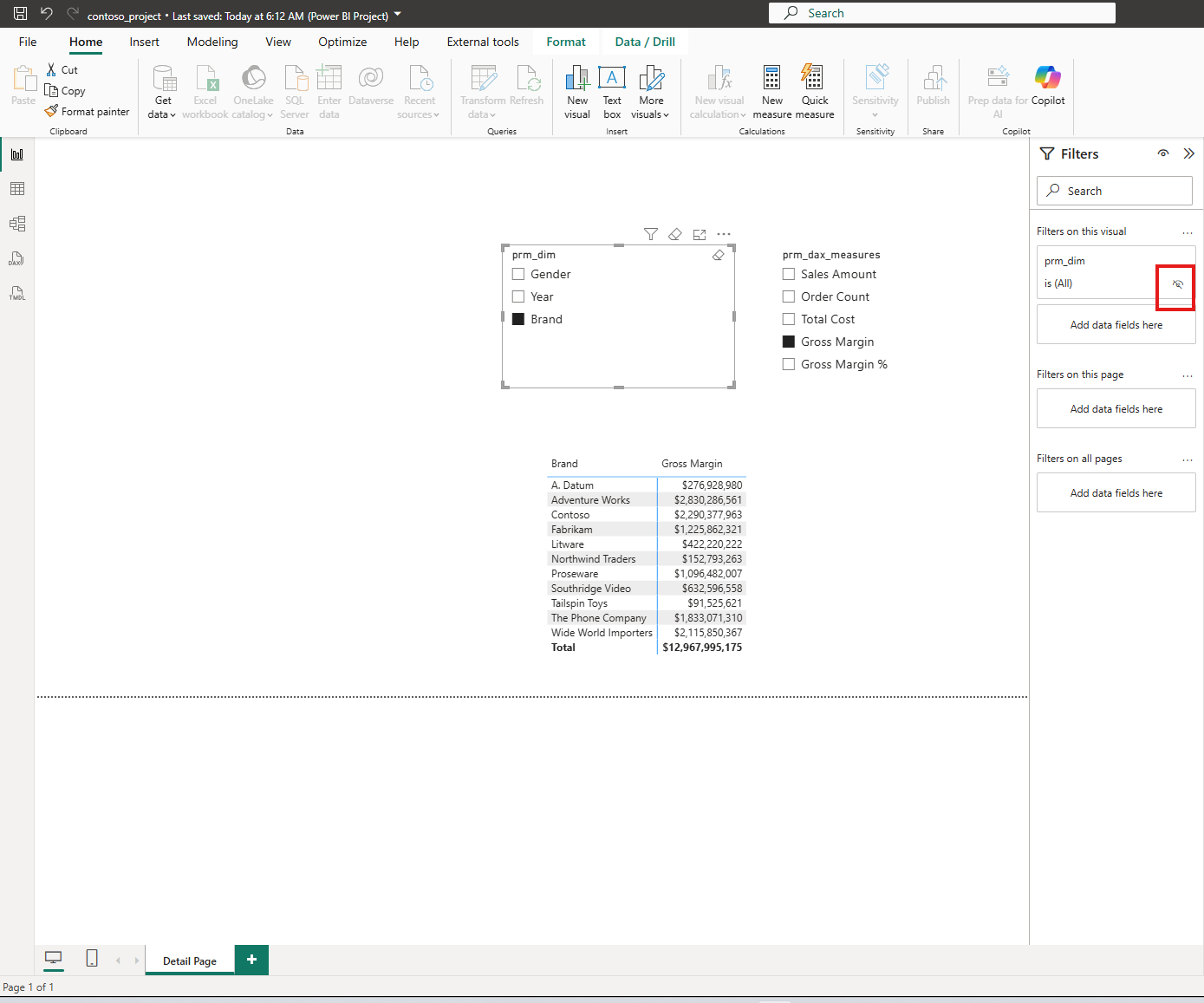
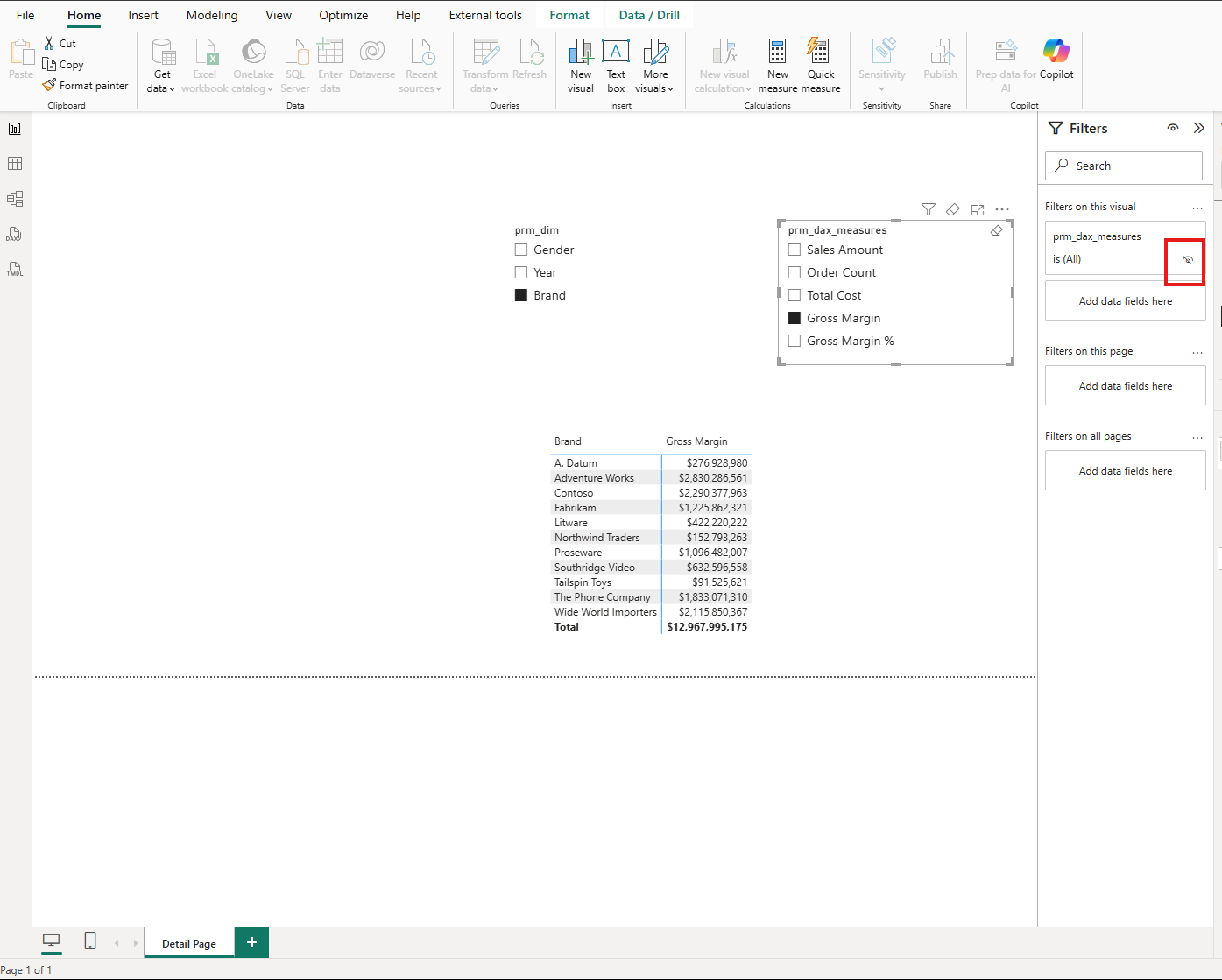
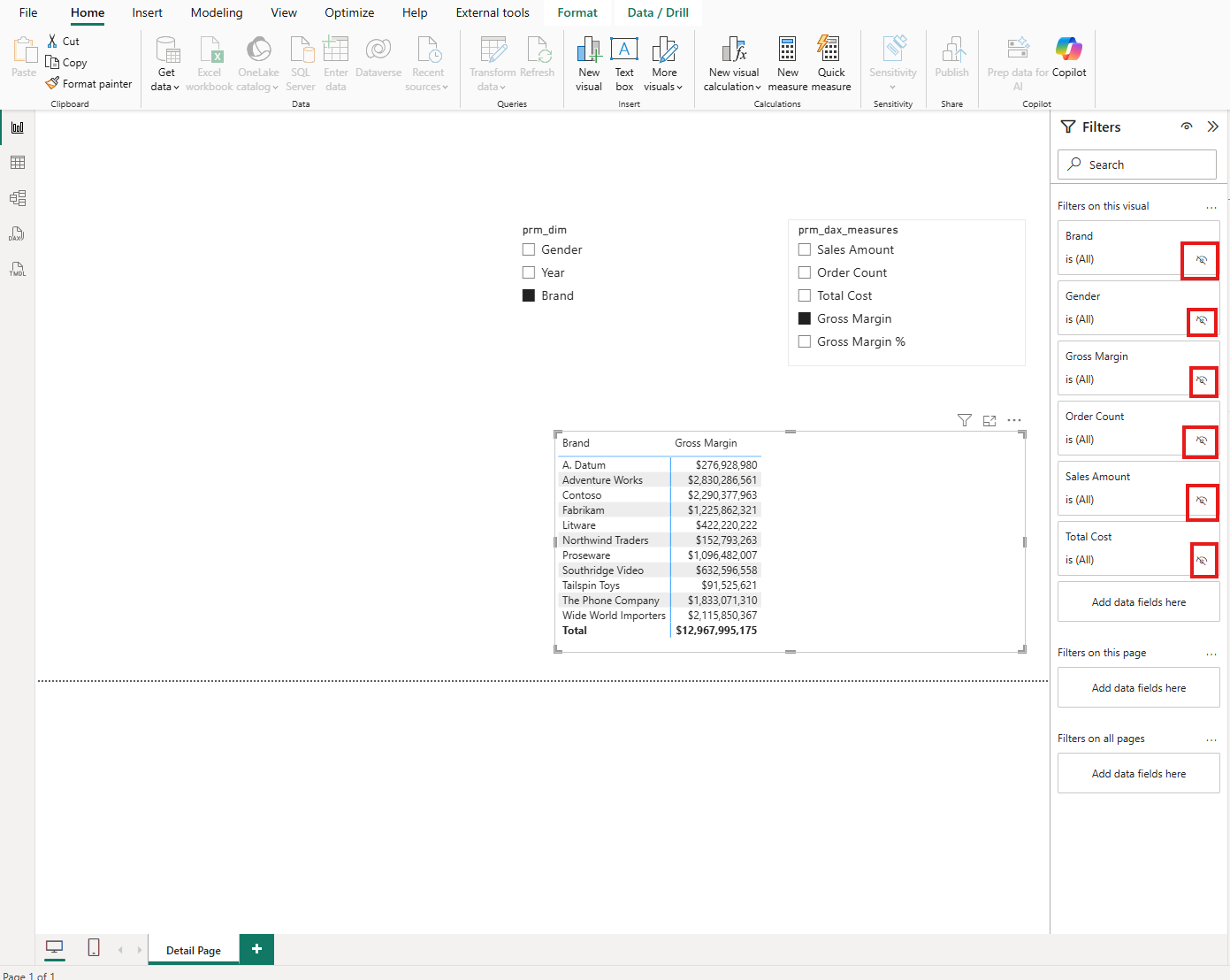
Then I published and opened the report in the Service as a consumer would. The Filters pane had nothing left in it at all.
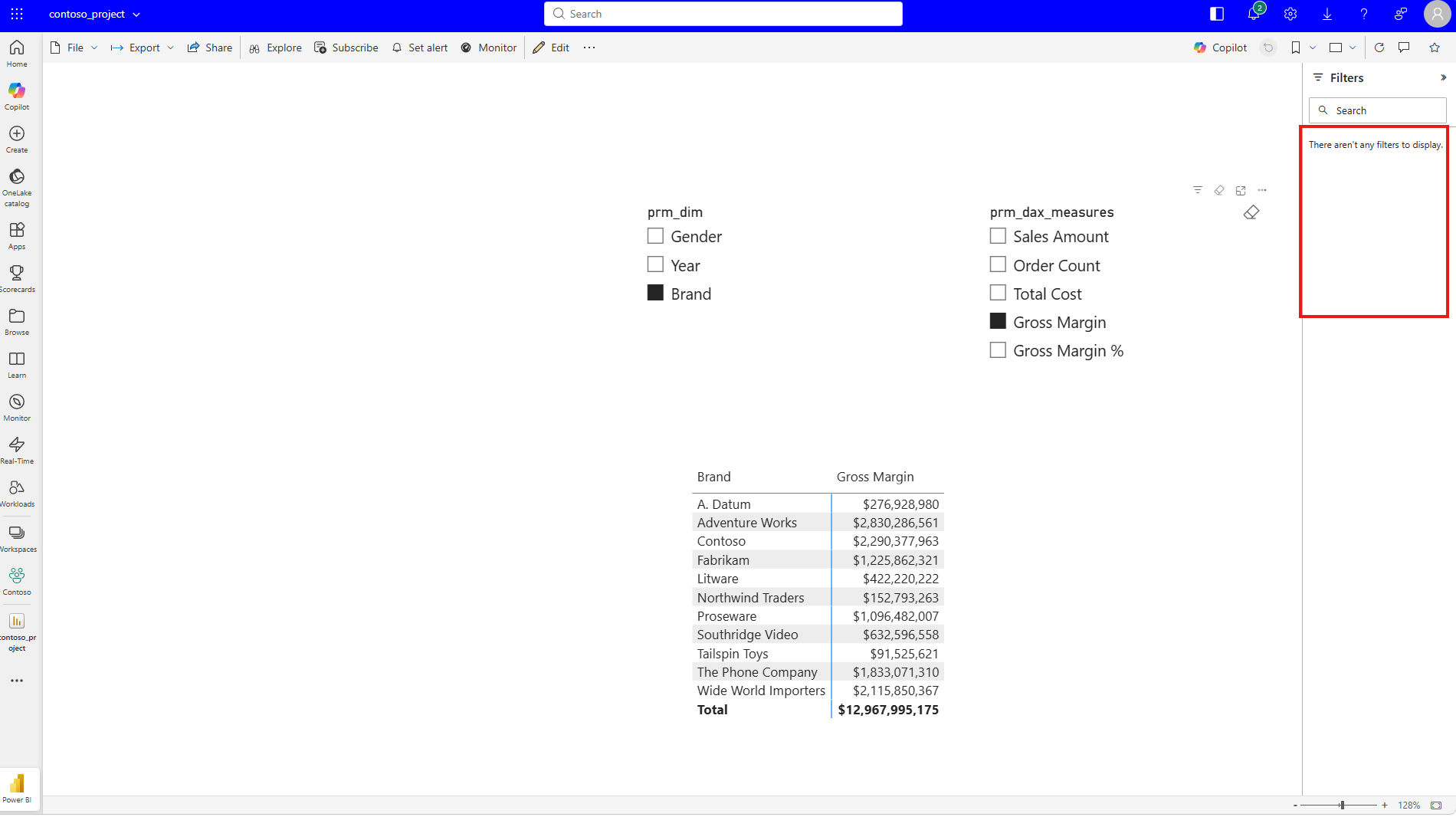
There aren't any filters to display. That message is what I had been treating as proof. Every filter hidden, nothing for a consumer to see, rule satisfied, go and write the check. I was wrong, and it took one click to find out.
3. What Users Saw After One Click
The empty pane is only the state the report opens in. The two slicers on this page are field parameters, so a consumer is expected to change what the matrix shows. That is the whole point of putting them there. The moment I did what a consumer does and picked a different field, filter cards appeared.
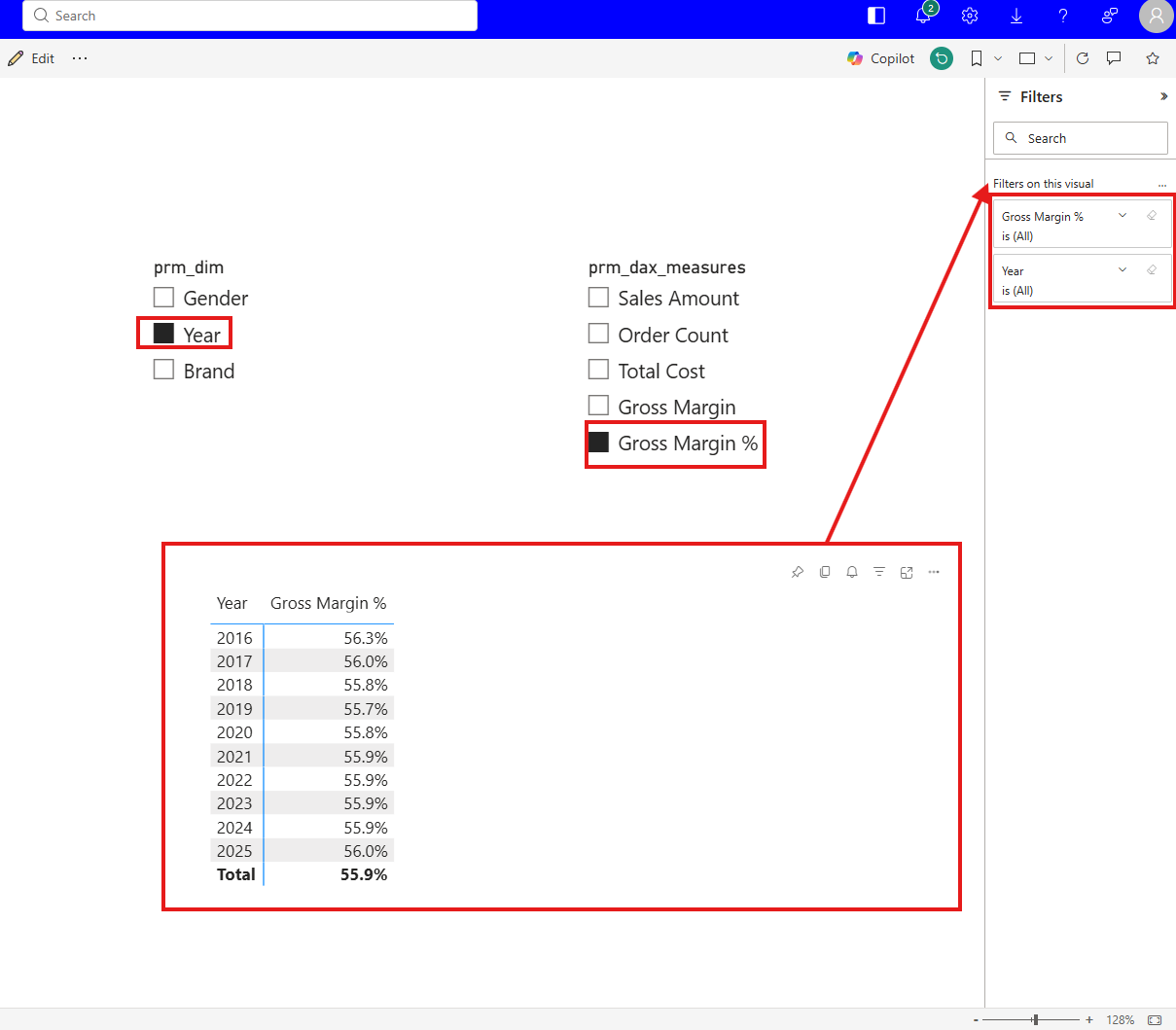
Two cards, Gross Margin % and Year, sitting in a pane I had emptied. Neither was ever hidden, because neither was ever there to hide. Every further selection brought up a different set.
So the rule my team wrote in one sentence is not a rule about the filters a report has. It is a rule about the filters a report can produce, and those are two different sets.
4. Two Field Parameters and Eight Fields
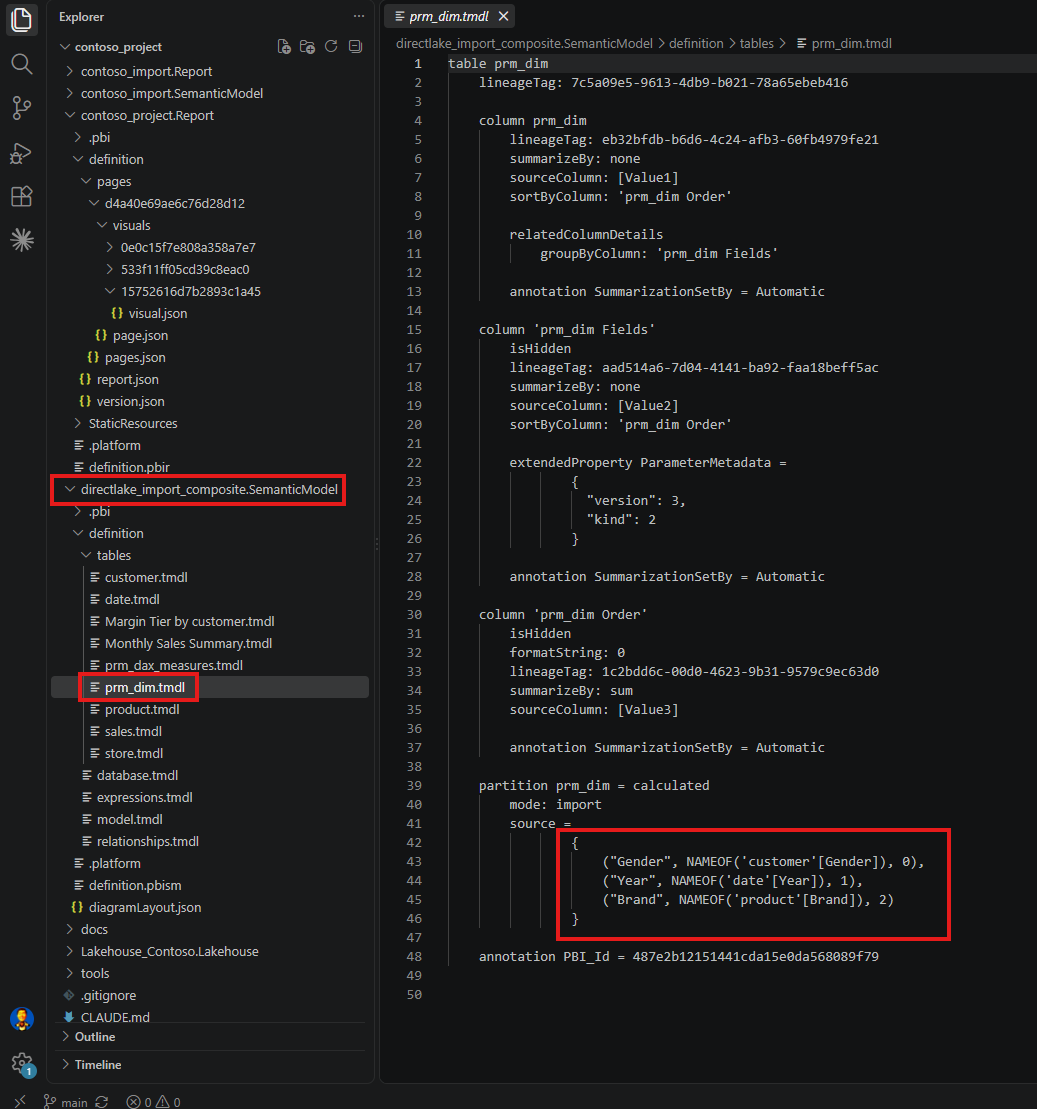
To see how far apart those two sets are, I went to the semantic model. Field parameters are explained in the Use Field Parameters in Power BI Reports article, which describes them as a way to let report readers dynamically change the measures or dimensions they are analyzing. The Edit a field parameter section shows the DAX, and it is the same shape as what sits in my TMDL.
prm_dim.tmdl holds three attributes: Gender, Year and Brand.
prm_dax_measures.tmdl holds five measures: Sales Amount, Order Count, Total Cost, Gross Margin and Gross Margin %.
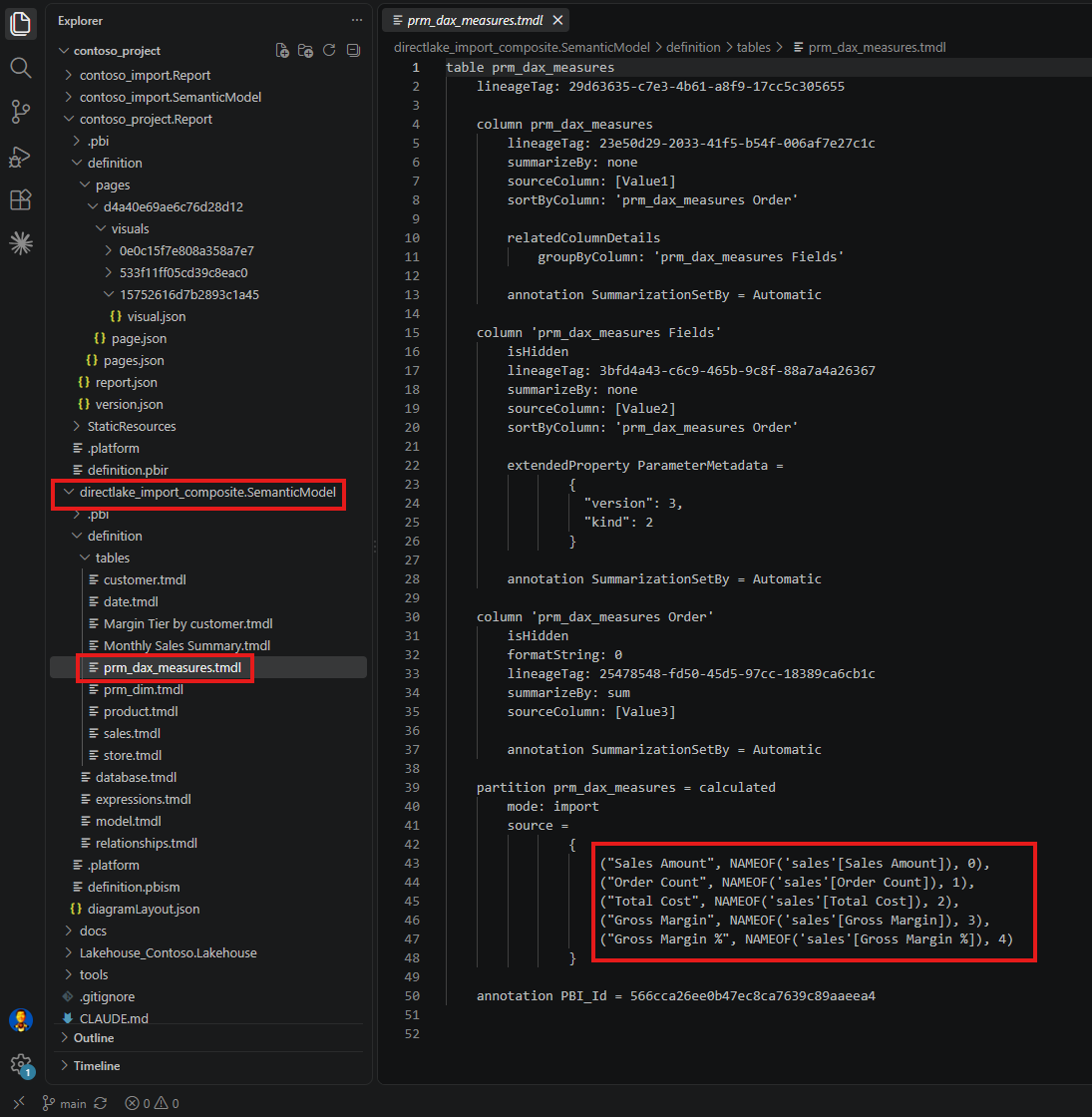
Three plus five is eight fields that one matrix can be asked to show. On the day I hid everything, it was showing two of them.
The matrix knows it is driven by those parameters, and it says so in its own file. Inside visual.json, each role in the query carries a fieldParameters array next to its projections, naming the parameter that feeds it.
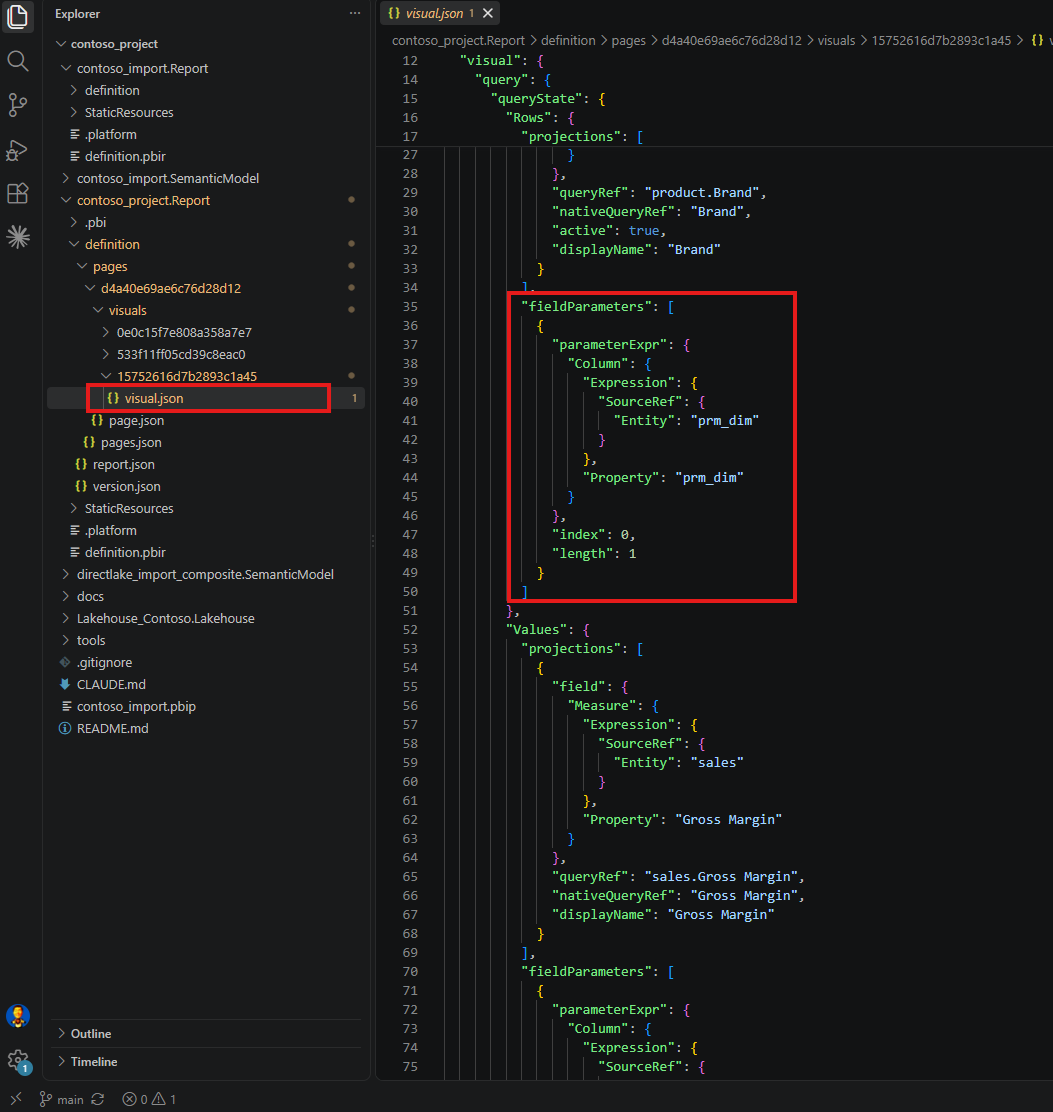
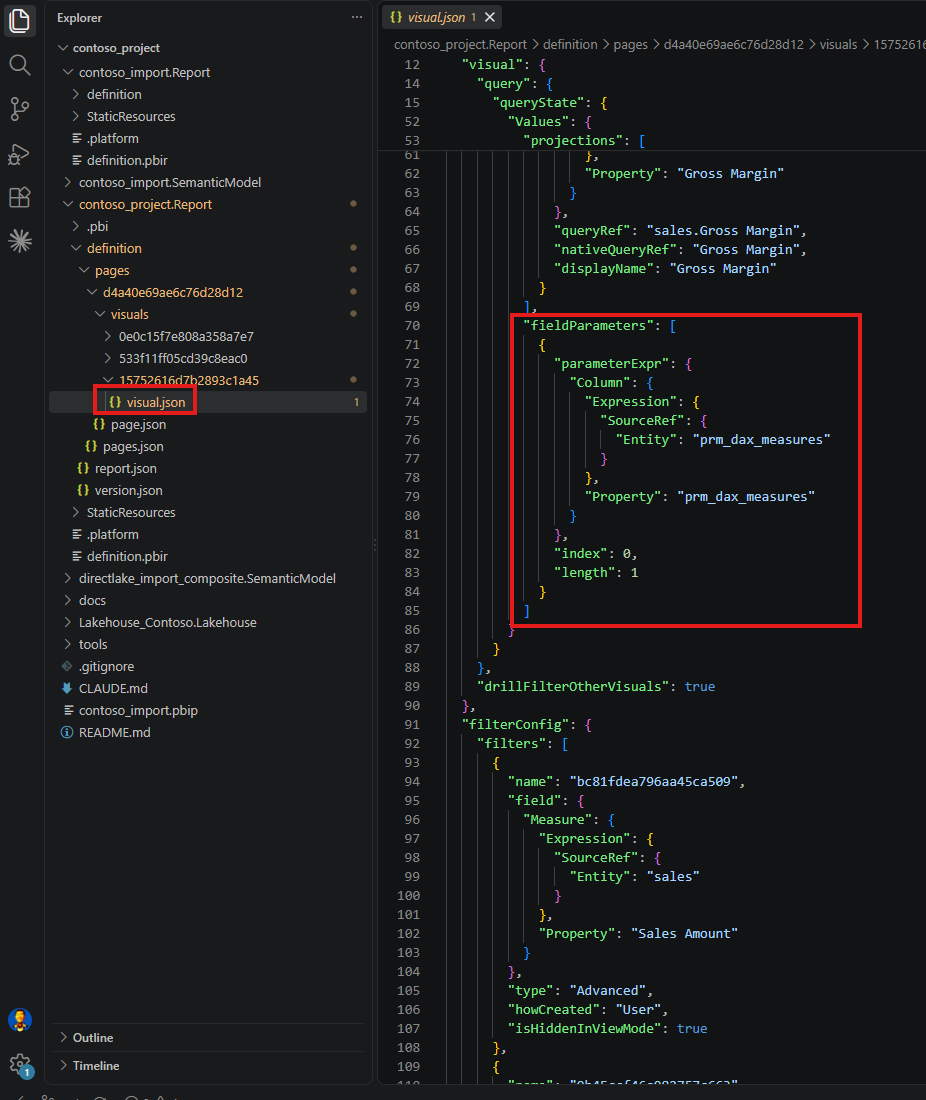
Rows is fed by prm_dim, Values is fed by prm_dax_measures. That turned out to be the most useful thing in the whole file, and the script in section 7 relies on it.
5. What visual.json Records, and What It Leaves Out
Now the filters themselves. Scrolling down the same file, the hidden ones are exactly where I expected.
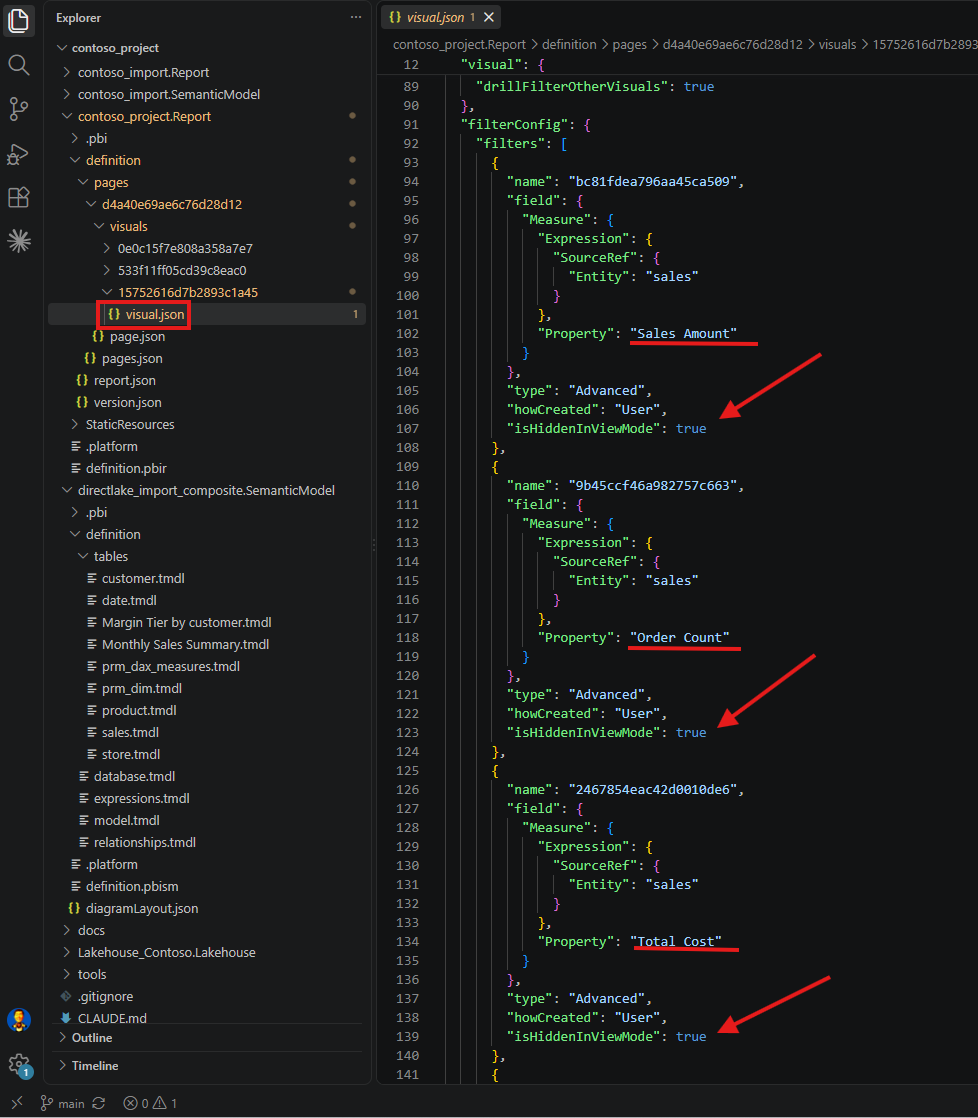
Sales Amount, Order Count and Total Cost, each carrying "isHiddenInViewMode": true. Further down, Gender and Gross Margin too.
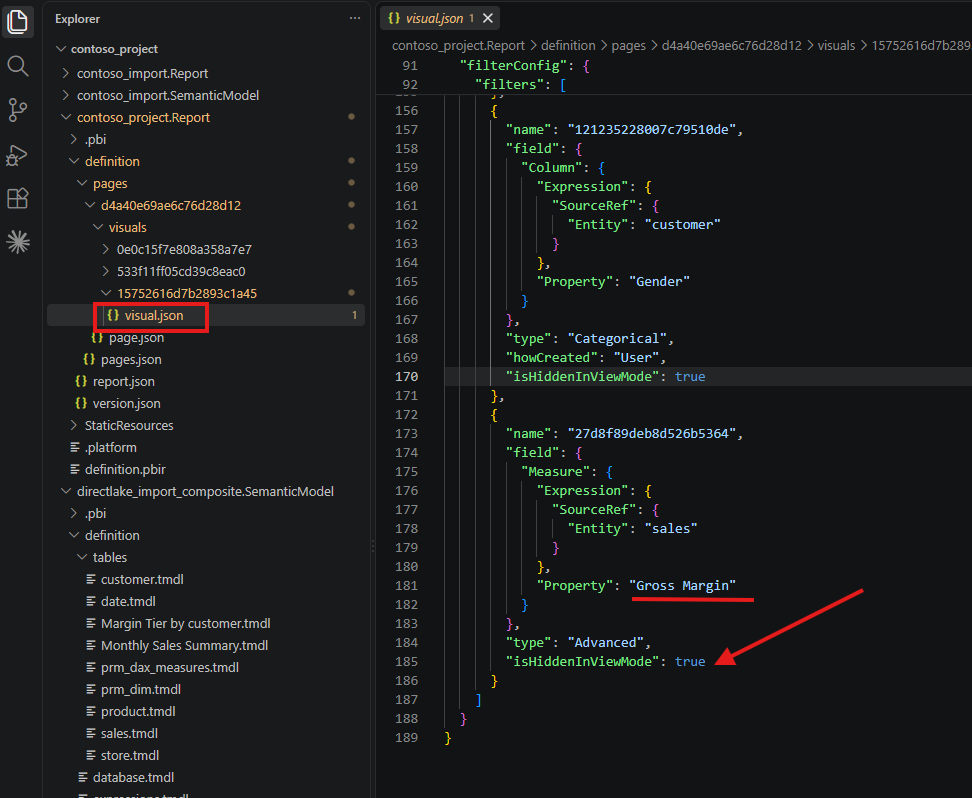
Then the array ends. Gross Margin % is not in it. Year is not in it either. They are not recorded as false, and they are not recorded as anything. They are simply absent, and absence is the part that makes this hard to check.
The reason is in the PBIR JSON schema. The PBIR Json Schemas section of the Power BI Desktop project report folder article says every PBIR file declares its schema at the top, and that all of these schemas are published in Microsoft's json-schemas repository on GitHub. Filters are not defined in the visual schema itself. In visualContainer/2.9.0/schema.json, lines 34 to 37, the filterConfig property points to a separate file, filterConfiguration/1.3.0/schema-embedded.json. In that file, lines 132 and 133 define isHiddenInViewMode with the description "Defines whether to hide this filter when viewing the report.", and lines 146 to 148 list name as the only required property of a filter. Nothing obliges Power BI to write isHiddenInViewMode at all, so a filter that is not hidden simply has no line about hiding.
One thing to be careful about. My own files declare visualContainer/2.12.0, but at the time of writing the newest version published in that repository is 2.9.0, and the 2.12.0 address returns a 404. So I am quoting the latest published version, not the exact one my Desktop wrote.
A filter you cannot find in the JSON is not a filter you have hidden.
That is the first trap, and it is not really about filters. PBIR does not write a setting into the file while the setting is at its default value. I saw the same thing in my January post with the Maintain layer order setting, found under Format, Properties, Advanced options. Switch it on and a keepLayerOrder property appears in visual.json. Leave it off and there is no line at all. So the easy version of a rule, searching for the wrong value, finds nothing. And a check that finds nothing looks exactly like a check that passes.
I wanted to watch that happen rather than reason about it, so I ran one more test. In Desktop I selected Year in prm_dim, deliberately left its filter card visible, and saved.
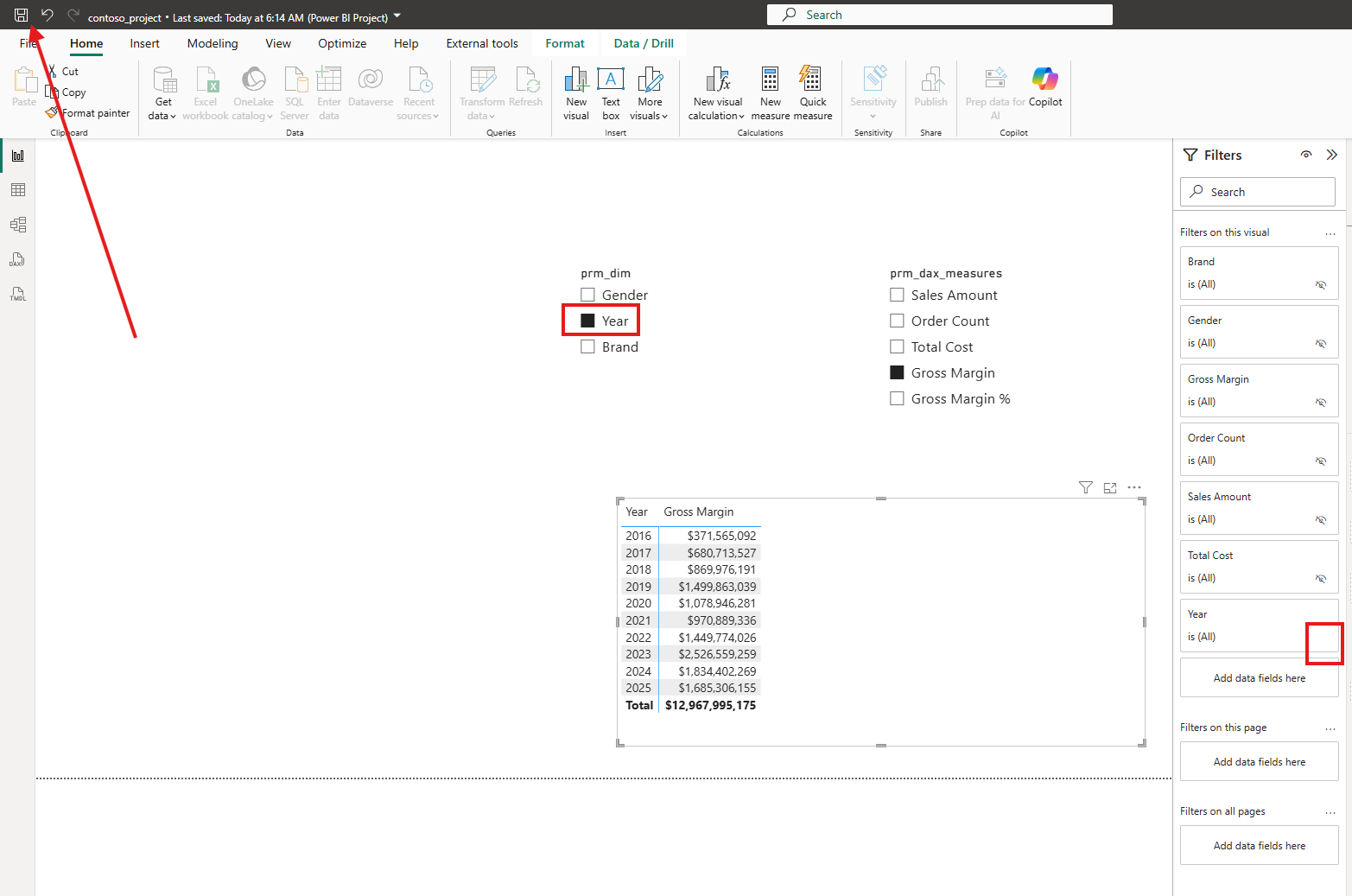
Then I looked at the file.
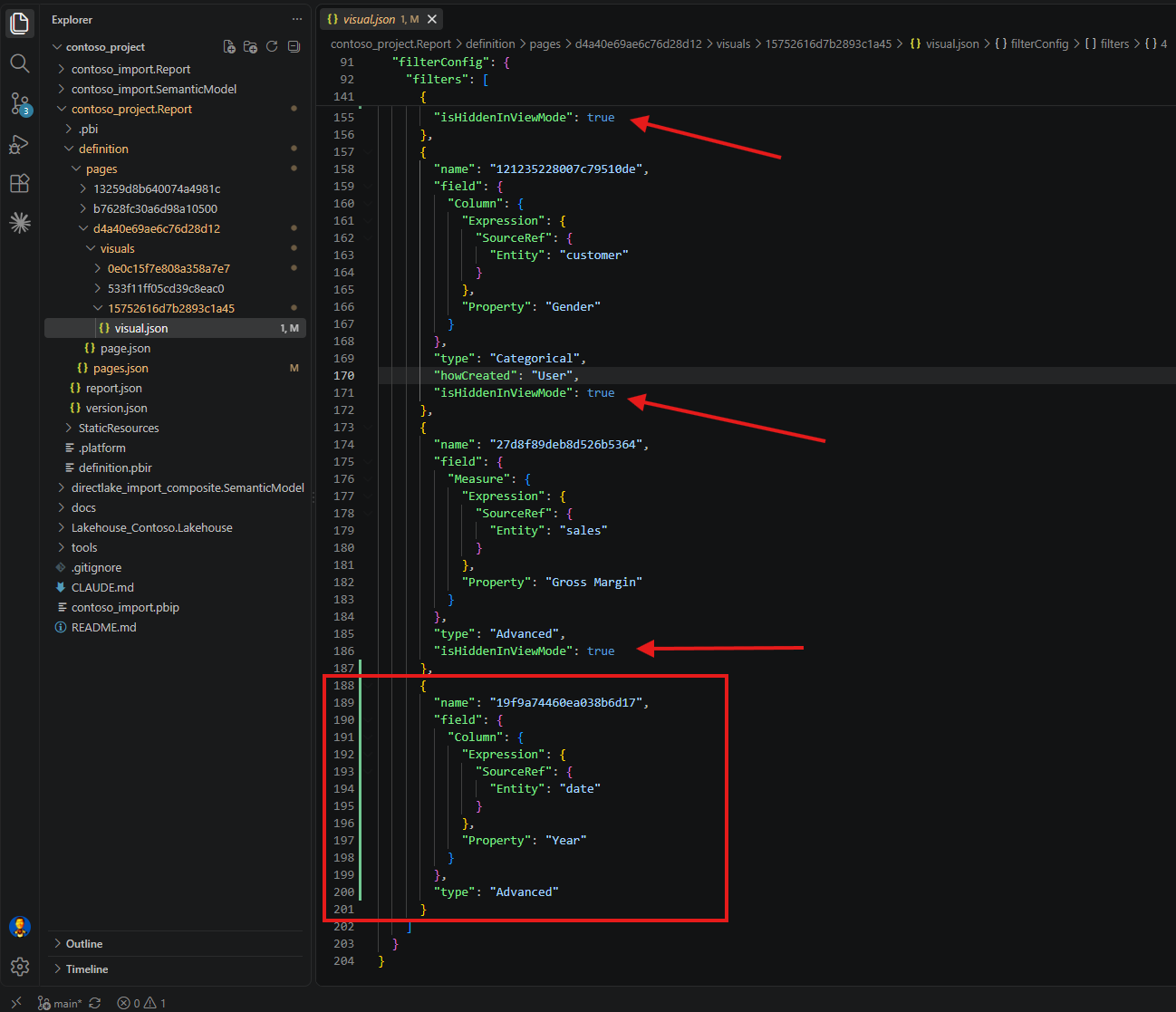
A new block, added at the end of the array, for date[Year], with "type": "Advanced" and no isHiddenInViewMode line. The filter came into existence only when I selected the field, and it arrived unhidden.
Microsoft documents this directly, in a place I had not thought to look. The PBIR considerations and limitations section of the Power BI Desktop project report folder article states that visual automatic filters are persisted to the PBIR visual.json file only after the filter pane has been expanded at least once while editing the report. That is the whole mechanism. The file is not a description of what the visual can do. It is a record of what somebody has already looked at.
That is the second trap. A rule about anything a report can do, rather than what it happens to be doing, cannot be answered from the report files alone.
Automatic filters are the ones affected, and the Automatic filters section of the Types of filters in Power BI reports article says they are added to the visual level of the filter pane when you build a visual, based on the fields that make up your visual. With a field parameter, the fields that make up the visual change while the report is being read.
6. Three Cases the Rule Has to Tell Apart
Before writing anything, I needed to know what a violation looks like next to what only resembles one.
The easy case first. On another page I left a table alone and hid nothing, so all four cards sit there in plain sight.
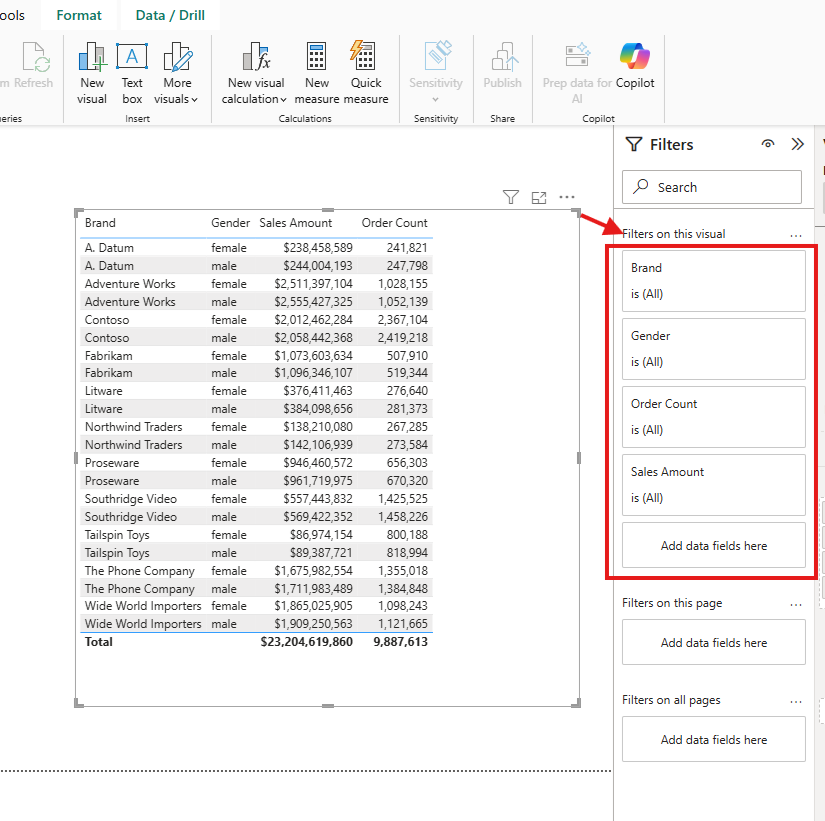
Searching that visual's visual.json for isHidden returns nothing.
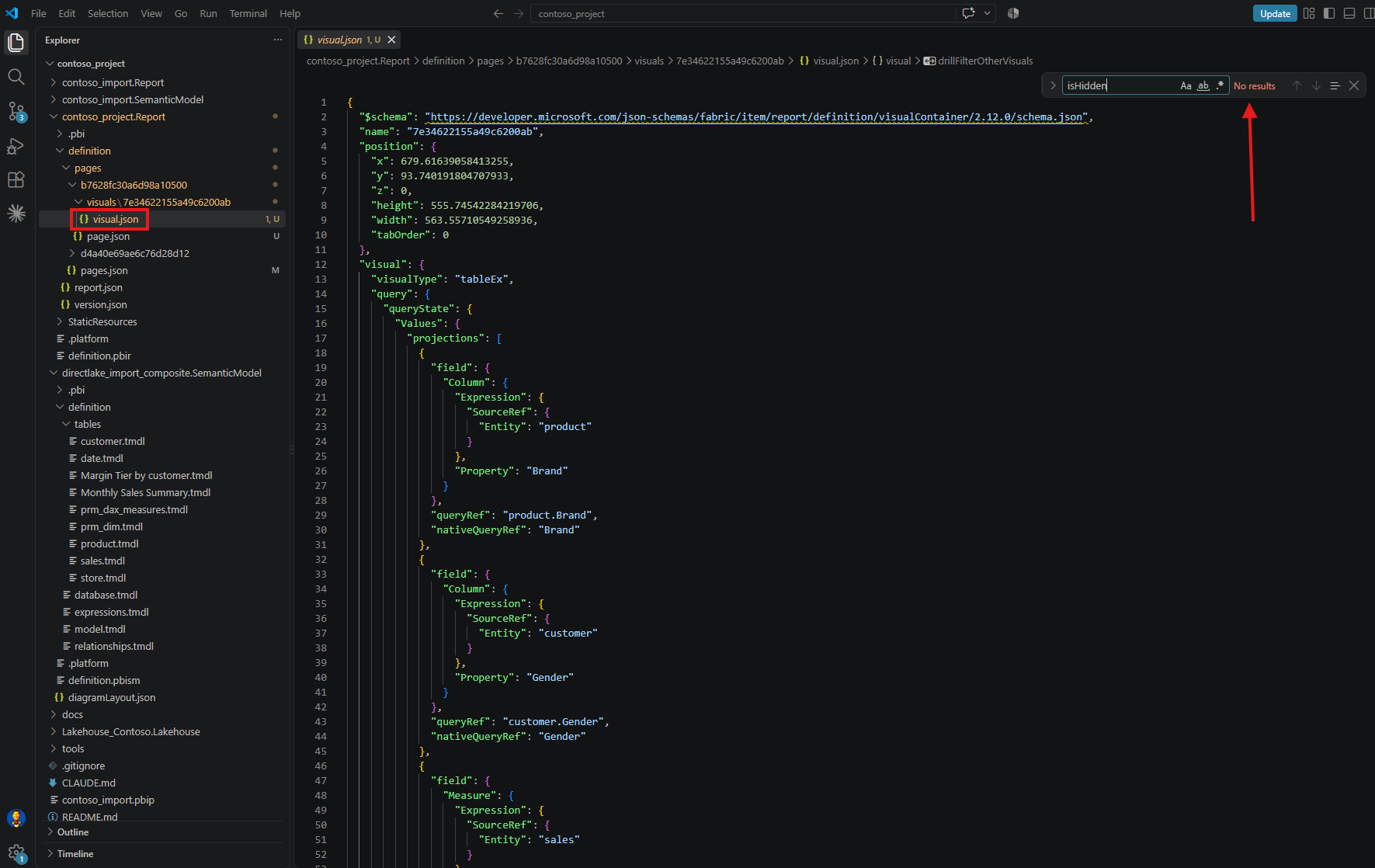
No results, four visible cards, one clear violation. A check that only knew how to do this much would already be worth having.
The second case is the one that makes a naive check useless. This page also has a button, and a button has no filters at all.
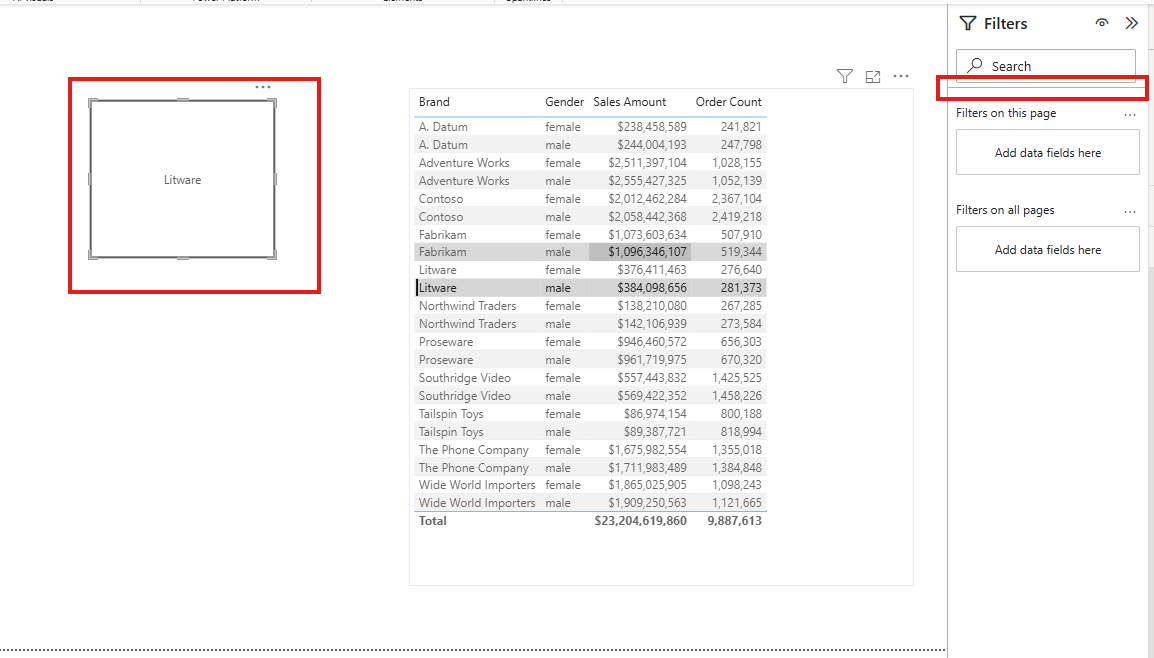
There is no Filters on this visual section for it. Searching its file for isHidden also returns nothing, and this time that is correct rather than wrong.
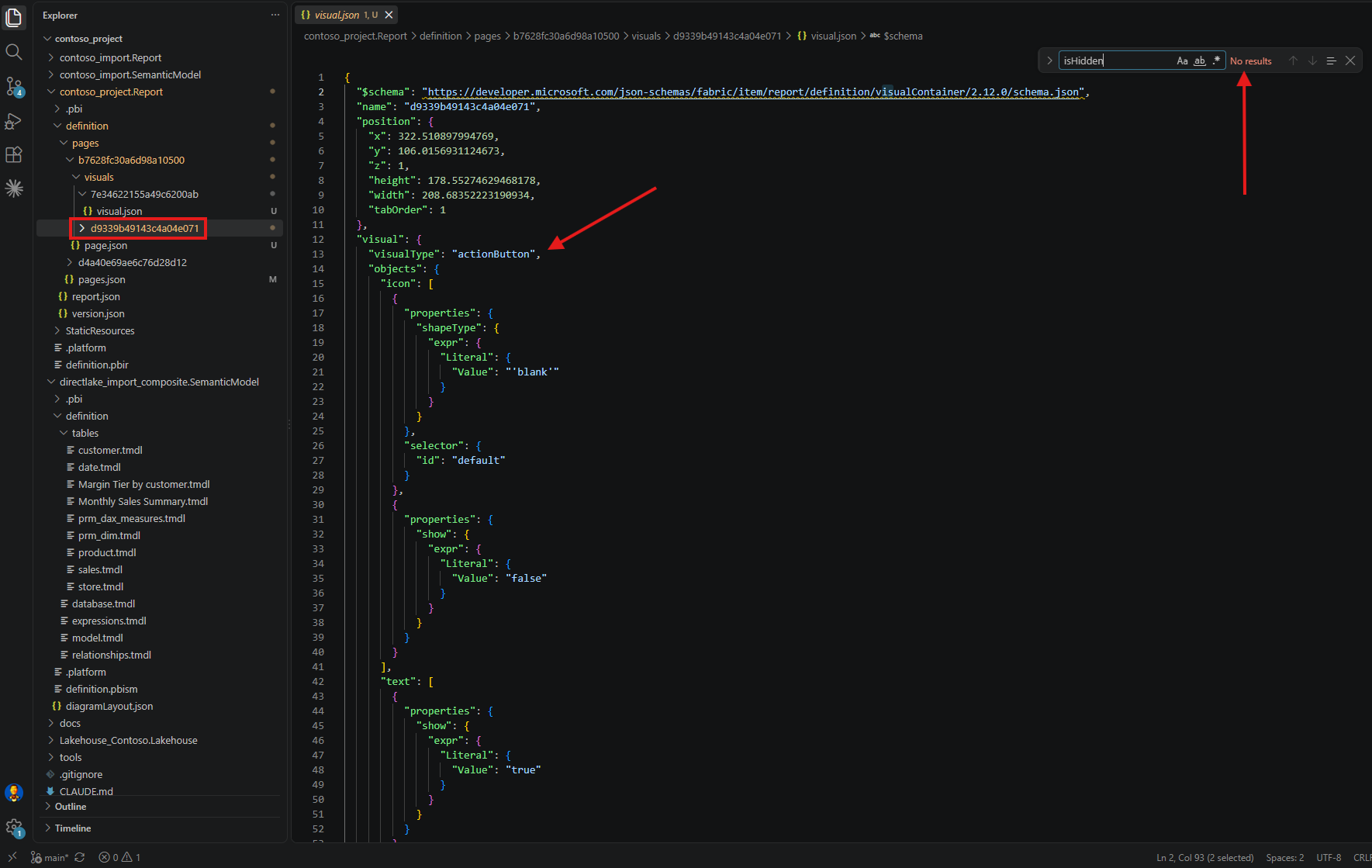
I went looking for a documented list of which visual types behave this way and could not find one. What is documented is the reason, and it is better than a list. The Build the Filters pane section of the Format filters article says Power BI adds a filter for each field in the visual, and the Add a filter to a visual section of the Add a Filter to a Report in Power BI article says the fields in a visual are automatically filters for it. One filter per field. A button has no fields, so it has no filters, and my checker never needs to know the name actionButton.
That is the third trap. Every rule has objects it does not apply to, and the tempting way to handle them is a list of names in the script. A list is a promise to maintain it, and it is wrong the first time somebody drops a new visual type on a page. Deriving the exemption from the same documentation the rule comes from costs one more paragraph of reading and then never needs touching again.
The third case looks like the first but comes from the model. I added a calculation group with three items.
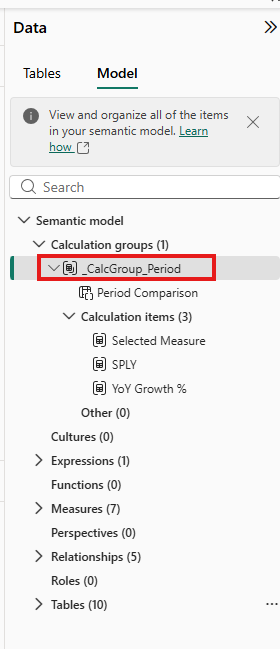
The Calculation groups article explains in its Benefits section that calculation groups are shown in reporting clients as a table with a single column. That single column goes onto the visual like any other field, so it gets a filter card like any other field. I put it on a matrix and did not hide it.
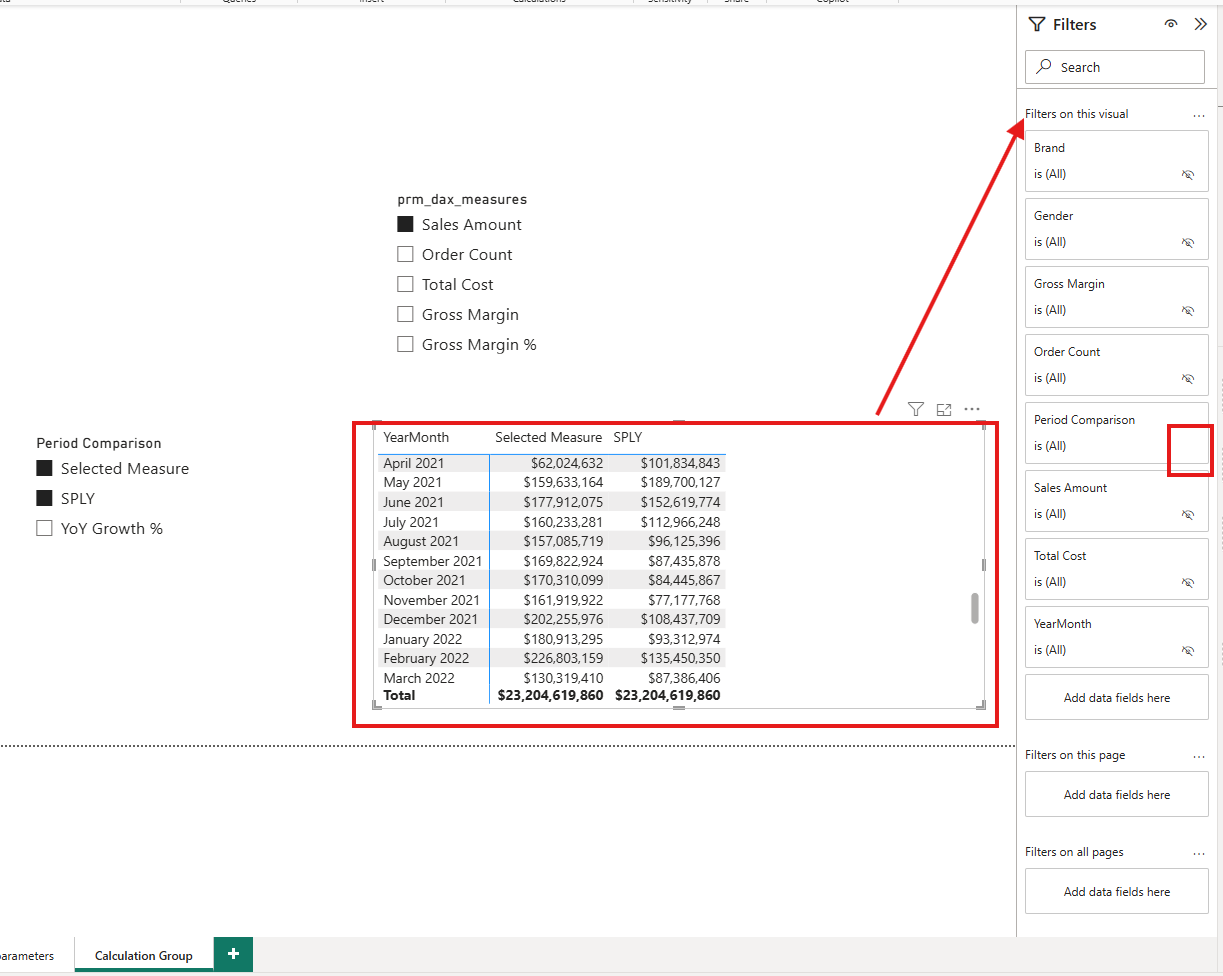
Seven cards hidden, one not, and the one left over is the calculation group. In Desktop I can spot it, because its eye icon is the only one without a line through it. But the person reviewing my pull request never sees this pane. They see visual.json, where the same difference is one missing isHiddenInViewMode line in a long list of filter entries, and that is very easy to miss.
7. The Script, and What It Found
I am sharing the whole script here instead of walking through it line by line. It is PowerShell, it only reads files and never changes the report, and it lives in the tools folder of the same repository as the report.
In short, it takes one .Report folder and reads its definition.pbir to find the semantic model the report is bound to, which the definition.pbir section of the project report folder article describes as the datasetReference. It reads the field parameter tables out of that model's TMDL. Then it opens every visual.json, skips any visual without a query, and checks that every field the visual shows, and every field its field parameters could show, has a filter with isHiddenInViewMode set to true. Filters created by drill-down or drillthrough are skipped, because the Compare filter types table in the Types of filters article says those cannot be hidden. At the end it prints what it found and exits with 0 for a clean report, 1 for violations, and 2 when it could not inspect anything, so a build can act on the result.
Two honest notes before you copy it. The script recognises a field parameter table by the ParameterMetadata extended property you can see at lines 22 to 26 of the prm_dim.tmdl screenshot in section 4. I read that marker from my own files, and I could not find it described on Microsoft Learn. And the default ReportPath at the top points at my report folder, so change it to yours, or pass -ReportPath when you run it.
<#
.SYNOPSIS
    Checks that every visual level filter in a PBIR report is hidden from the
    Filters pane, including the fields a field parameter can produce but is not
    currently showing.

.DESCRIPTION
    Team rule: a report consumer must never see a visual level filter card.

    Checking that rule is not the same as searching for isHiddenInViewMode.
    Three things make it harder.

    First, a visible filter has no isHiddenInViewMode property at all. The PBIR
    filter schema marks only "name" as required, so absence is the failure, not
    a value of false.

    Second, a visual driven by a field parameter only records filters for the
    fields it is showing right now. The other members of the parameter are
    absent from visual.json, and they appear in the Filters pane, unhidden, the
    moment a user switches selection. So the check has to read the field
    parameter definitions out of the semantic model TMDL and require a hidden
    filter for every member, not only the visible ones.

    Third, buttons, shapes, images and text boxes have no fields, so they have
    no filters and must not be reported. They are identified by the absence of
    a "query" object, not by a hardcoded list of visual types, and not by the
    absence of filterConfig, which data visuals also lack until the Filters
    pane has been expanded once.

    Read only. This script never modifies the report.

.PARAMETER ReportPath
    The .Report folder to check. One report, not the whole repository, because
    a repository can hold several reports and several semantic models that have
    nothing to do with each other.

    The matching semantic model is not passed in. It is read from the report's
    own definition.pbir, whose datasetReference names the model this report is
    bound to.

.EXAMPLE
    .\tools\Test-HiddenVisualFilters.ps1

.EXAMPLE
    .\tools\Test-HiddenVisualFilters.ps1 -ReportPath 'C:\01 Git Project\contoso_project\contoso_import.Report'
#>
[CmdletBinding()]
param(
    [string]$ReportPath = (Join-Path (Split-Path -Parent $PSScriptRoot) 'contoso_project.Report')
)

$ErrorActionPreference = 'Stop'

if (-not (Test-Path -LiteralPath $ReportPath)) {
    throw "ReportPath does not exist: $ReportPath"
}
$ReportPath = (Resolve-Path -LiteralPath $ReportPath).Path

$pagesRoot = Join-Path $ReportPath 'definition\pages'
if (-not (Test-Path -LiteralPath $pagesRoot)) {
    throw ("No definition\pages folder under $ReportPath. " +
           "Point ReportPath at a .Report folder saved in PBIR format.")
}

Write-Host ("Report: {0}" -f (Split-Path -Leaf $ReportPath))

# ---------------------------------------------------------------------------
# 0. Find the semantic model this report is bound to.
#
# definition.pbir carries a datasetReference. A byPath reference is a relative
# path to the model folder, using forward slashes. A byConnection reference
# points at a model in a Fabric workspace, which is not on disk, so the field
# parameter rules cannot run and the script says so rather than passing
# quietly.
# ---------------------------------------------------------------------------

$modelPath = $null
$pbirPath = Join-Path $ReportPath 'definition.pbir'

if (-not (Test-Path -LiteralPath $pbirPath)) {
    Write-Warning "No definition.pbir found. Field parameter rules are skipped."
}
else {
    $pbir = Get-Content -LiteralPath $pbirPath -Raw | ConvertFrom-Json
    $byPath = $pbir.datasetReference.byPath.path

    if ($byPath) {
        $candidate = Join-Path $ReportPath ($byPath -replace '/', '\')
        if (Test-Path -LiteralPath $candidate) {
            $modelPath = (Resolve-Path -LiteralPath $candidate).Path
            Write-Host ("Semantic model: {0}" -f (Split-Path -Leaf $modelPath))
        }
        else {
            Write-Warning "definition.pbir points at '$byPath', which does not exist. Field parameter rules are skipped."
        }
    }
    elseif ($pbir.datasetReference.byConnection) {
        Write-Warning "This report uses a byConnection reference, so the semantic model is not on disk. Field parameter rules are skipped."
    }
    else {
        Write-Warning "definition.pbir has no usable datasetReference. Field parameter rules are skipped."
    }
}

# Filter kinds Power BI does not allow an author to hide. Documented in the
# "Compare filter types" table of "Types of filters in Power BI reports".
$UnhideableHowCreated = @('Drill', 'Drillthrough')

function Get-FieldKey {
    param($FieldObject)

    if ($null -eq $FieldObject) { return $null }

    $wrapper = $FieldObject.PSObject.Properties | Select-Object -First 1
    if ($null -eq $wrapper) { return $null }

    $inner = $wrapper.Value
    $entity = $null
    if ($inner.Expression -and $inner.Expression.SourceRef) {
        $entity = $inner.Expression.SourceRef.Entity
    }
    if (-not $entity) { return $null }
    if (-not $inner.Property) { return $null }

    return ('{0}[{1}]' -f $entity, $inner.Property)
}

function Get-VisualTitle {
    <#
        The title a person sees, when the author has set one. PBIR stores
        formatting as objects.<name>[].properties.<prop>.expr, and a typed-in
        title is a Literal whose Value arrives wrapped in single quotes.

        Most visuals have no title object at all, because an automatic title is
        not written to the file. Same default-omission pattern as the filters
        this script is checking, so absence here means "no custom title", not
        "no title on screen".
    #>
    param($Visual)

    if (-not $Visual.objects) { return $null }
    if (-not $Visual.objects.title) { return $null }

    foreach ($entry in @($Visual.objects.title)) {
        $literal = $entry.properties.text.expr.Literal.Value
        if ($literal) {
            return ($literal -replace "^'", '' -replace "'$", '')
        }
    }
    return $null
}

function Get-VisualLabel {
    <#
        A name a human can act on. The folder name is a twenty character
        identifier, which is what you need to find the file but useless for
        recognising the visual on the canvas. So lead with the title when there
        is one, fall back to the fields the visual shows, and keep the
        identifier in brackets so the file is still findable.
    #>
    param($Visual)

    $title = $Visual.Title
    if ($title) {
        return ('{0} "{1}"' -f $Visual.VisualType, $title)
    }

    if ($Visual.Projections.Count -gt 0) {
        $shown = $Visual.Projections | Select-Object -First 2
        $suffix = ''
        if ($Visual.Projections.Count -gt 2) {
            $suffix = (' and {0} more' -f ($Visual.Projections.Count - 2))
        }
        return ('{0} showing {1}{2}' -f $Visual.VisualType, ($shown -join ', '), $suffix)
    }

    return $Visual.VisualType
}

# ---------------------------------------------------------------------------
# 1. Read the field parameter tables out of the semantic model.
# ---------------------------------------------------------------------------

$fieldParameters = @{}

$tmdlFiles = @()
if ($modelPath) {
    $tablesRoot = Join-Path $modelPath 'definition\tables'
    if (Test-Path -LiteralPath $tablesRoot) {
        $tmdlFiles = @(Get-ChildItem -Path $tablesRoot -Filter '*.tmdl' -File)
    }
    else {
        Write-Warning "No definition\tables folder under $modelPath. Field parameter rules are skipped."
    }
}

foreach ($tmdl in $tmdlFiles) {

    $text = Get-Content -LiteralPath $tmdl.FullName -Raw

    # A field parameter table carries a ParameterMetadata extended property.
    if ($text -notmatch 'extendedProperty\s+ParameterMetadata') { continue }

    $nameMatch = [regex]::Match($text, "(?m)^table\s+'?([^'\r\n]+?)'?\s*$")
    if (-not $nameMatch.Success) { continue }
    $tableName = $nameMatch.Groups[1].Value

    $pattern = '\(\s*"([^"]+)"\s*,\s*NAMEOF\(\s*''([^'']+)''\[([^\]]+)\]\s*\)'
    $members = @()
    foreach ($m in [regex]::Matches($text, $pattern)) {
        $members += [pscustomobject]@{
            DisplayName = $m.Groups[1].Value
            Key         = ('{0}[{1}]' -f $m.Groups[2].Value, $m.Groups[3].Value)
        }
    }

    if ($members.Count -gt 0) {
        $fieldParameters[$tableName] = $members
    }
}

# ---------------------------------------------------------------------------
# 2. Walk the report.
# ---------------------------------------------------------------------------

$pageFolders = @(Get-ChildItem -Path $pagesRoot -Directory | Sort-Object Name)

$violations = @()
$visualCount = 0
$skippedCount = 0
$pageCount = 0

foreach ($pageFolder in $pageFolders) {

    $pageJsonPath = Join-Path $pageFolder.FullName 'page.json'
    if (-not (Test-Path -LiteralPath $pageJsonPath)) { continue }
    $pageName = (Get-Content -LiteralPath $pageJsonPath -Raw | ConvertFrom-Json).displayName

    $visualFiles = @(Get-ChildItem -Path $pageFolder.FullName -Recurse -Filter 'visual.json' -File |
        Sort-Object FullName)
    if ($visualFiles.Count -eq 0) { continue }

    $pageCount++

    # Load every visual on the page first, because a field parameter used by
    # one visual changes what is required of its neighbours.
    $loaded = @()
    foreach ($vf in $visualFiles) {

        $doc = Get-Content -LiteralPath $vf.FullName -Raw | ConvertFrom-Json
        $visual = $doc.visual

        $projections = @()
        $parameterEntities = @()
        if ($visual.query -and $visual.query.queryState) {
            foreach ($role in $visual.query.queryState.PSObject.Properties) {

                foreach ($proj in @($role.Value.projections)) {
                    $key = Get-FieldKey $proj.field
                    if ($key) { $projections += $key }
                }

                # A role fed by a field parameter says so itself, in a
                # fieldParameters array sitting beside its projections. This is
                # the visual declaring which parameter drives it, so there is no
                # need to guess from what else sits on the page.
                foreach ($fp in @($role.Value.fieldParameters)) {
                    if ($null -eq $fp) { continue }
                    $wrapper = $fp.parameterExpr.PSObject.Properties | Select-Object -First 1
                    if ($null -eq $wrapper) { continue }
                    $entity = $wrapper.Value.Expression.SourceRef.Entity
                    if ($entity -and $parameterEntities -notcontains $entity) {
                        $parameterEntities += $entity
                    }
                }
            }
        }

        # filterConfig sits at the root of visual.json, beside "visual", not
        # inside it. Older schema versions nested it, so check both.
        $filters = @()
        if ($doc.filterConfig -and $doc.filterConfig.filters) {
            $filters = @($doc.filterConfig.filters)
        }
        elseif ($visual.filterConfig -and $visual.filterConfig.filters) {
            $filters = @($visual.filterConfig.filters)
        }

        $loaded += [pscustomobject]@{
            File              = $vf
            Name              = $doc.name
            VisualType        = $visual.visualType
            Title             = (Get-VisualTitle $visual)
            HasQuery          = ($null -ne $visual.query)
            Projections       = $projections
            ParameterEntities = $parameterEntities
            Filters           = $filters
        }
    }

    foreach ($v in $loaded) {

        $visualCount++
        $label = '{0} / {1}' -f $pageName, (Get-VisualLabel $v)

        # A visual with no query has no fields, so it has no filters to hide.
        if (-not $v.HasQuery) {
            $skippedCount++
            continue
        }

        $hidden = @()
        $recorded = @()
        foreach ($f in $v.Filters) {
            if ($null -eq $f) { continue }
            $key = Get-FieldKey $f.field
            if (-not $key) { continue }
            $recorded += $key
            if ($f.isHiddenInViewMode -eq $true) { $hidden += $key }
        }

        # Rule 1. A filter already written into the file must be hidden.
        foreach ($f in $v.Filters) {
            if ($null -eq $f) { continue }
            if ($UnhideableHowCreated -contains $f.howCreated) { continue }
            if ($f.isHiddenInViewMode -eq $true) { continue }

            $key = Get-FieldKey $f.field
            if (-not $key) { $key = $f.name }

            $violations += [pscustomobject]@{
                Visual = $label
                Folder = $v.Name
                Field  = $key
                Reason = 'recorded in visual.json but not hidden'
                Path   = $v.File.FullName
            }
        }

        # Rule 2. Every field the visual shows needs a hidden filter, even when
        # no filter has been written into the file yet.
        $required = @{}
        foreach ($p in $v.Projections) {
            if (-not $required.ContainsKey($p)) { $required[$p] = 'shown in the visual' }
        }

        # Rule 3. For a visual fed by a field parameter, every member of that
        # parameter needs a hidden filter, including the members nobody has
        # selected yet. The slicer that drives the parameter declares no
        # fieldParameters of its own, so it is left alone here.
        foreach ($paramName in $v.ParameterEntities) {

            if (-not $fieldParameters.ContainsKey($paramName)) {
                Write-Warning ("Visual '{0}' is fed by field parameter '{1}', which was not found in the semantic model." -f $v.Name, $paramName)
                continue
            }

            foreach ($m in $fieldParameters[$paramName]) {
                if (-not $required.ContainsKey($m.Key)) {
                    $required[$m.Key] = ('selectable through field parameter {0}' -f $paramName)
                }
            }
        }

        foreach ($key in ($required.Keys | Sort-Object)) {
            if ($hidden -contains $key) { continue }
            # Rule 1 already reported this one.
            if ($recorded -contains $key) { continue }

            $violations += [pscustomobject]@{
                Visual = $label
                Folder = $v.Name
                Field  = $key
                Reason = ('no filter recorded at all, {0}' -f $required[$key])
                Path   = $v.File.FullName
            }
        }
    }
}

# ---------------------------------------------------------------------------
# 3. Report.
# ---------------------------------------------------------------------------

# Grouped by visual, so a visual with four problems is read once rather than
# four times, and the folder name is printed once where it is needed.
foreach ($group in ($violations | Group-Object Visual)) {
    Write-Host ''
    Write-Host ('VIOLATION  {0}' -f $group.Name)
    Write-Host ('           folder {0}' -f $group.Group[0].Folder)
    foreach ($item in $group.Group) {
        Write-Host ('             - {0} : {1}' -f $item.Field, $item.Reason)
    }
}

if ($violations.Count -gt 0) { Write-Host '' }

$parameterSummary = 'none'
if ($fieldParameters.Count -gt 0) {
    $parameterSummary = (($fieldParameters.Keys | Sort-Object) -join ', ')
}

Write-Host ('Field parameters found: {0}' -f $parameterSummary)
Write-Host ('Checked {0} visuals across {1} of {2} pages. {3} skipped, no query.' -f $visualCount, $pageCount, $pageFolders.Count, $skippedCount)
Write-Host ('{0} violations.' -f $violations.Count)

# A run that inspected nothing must not read as a pass. In a build this is the
# difference between a clean report and a wrong ReportPath.
if ($visualCount -eq 0) {
    Write-Warning "No visuals were inspected, so this result proves nothing. Check ReportPath."
    exit 2
}

if ($violations.Count -gt 0) { exit 1 }
exit 0
To test it, I made a sample page with three visuals, a matrix and two field parameter slicers, and ran the script from the VS Code terminal.
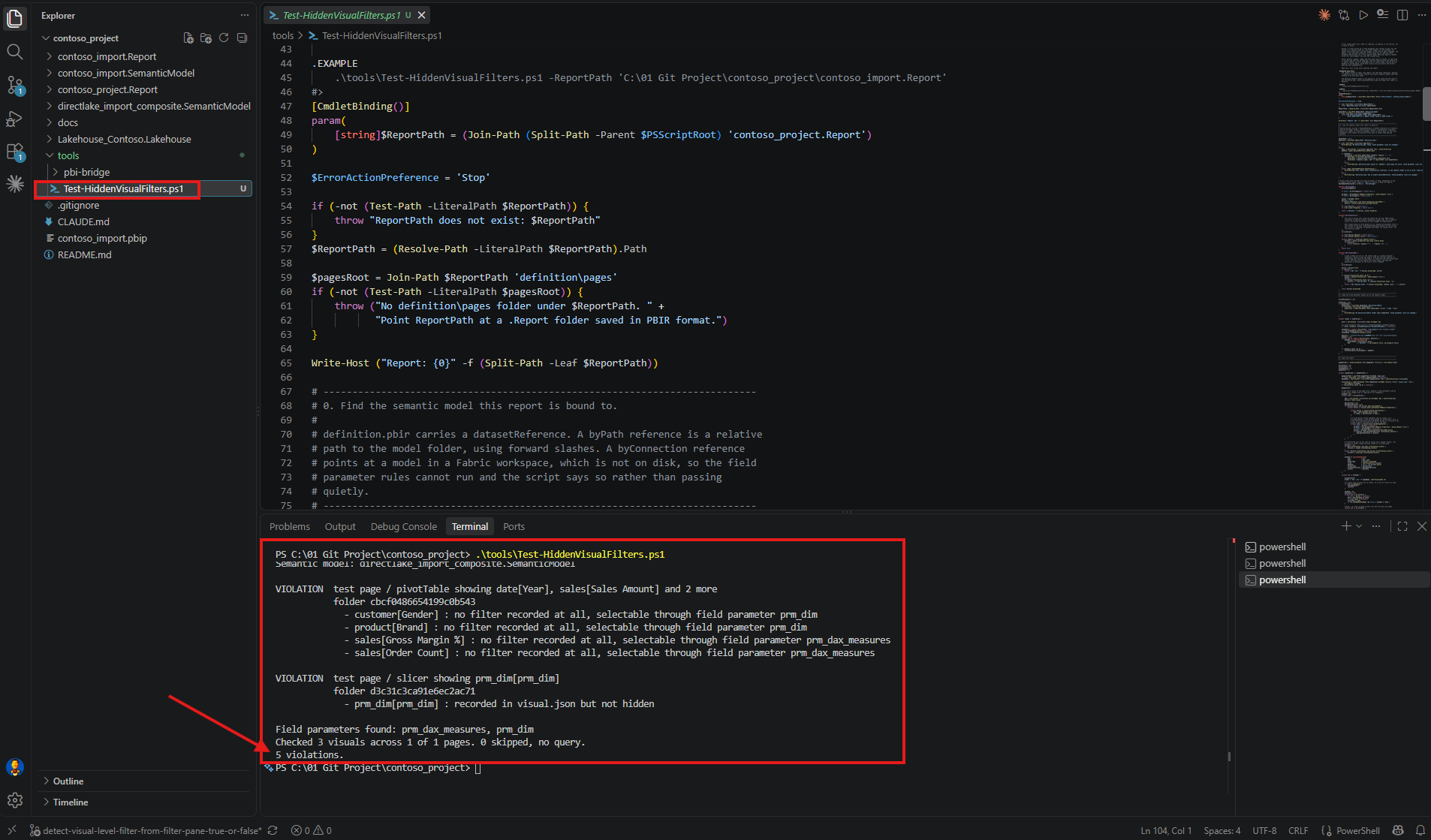
Three visuals checked, five violations. Four of them belong to the matrix, and they are exactly the fields nobody had selected yet: Gender and Brand from prm_dim, and Gross Margin % and Order Count from prm_dax_measures. The fifth is the prm_dim slicer, whose own filter card was simply never hidden. The two phrasings tell me which kind of problem I am looking at. Recorded in visual.json but not hidden is somebody forgetting to click the icon. No filter recorded at all is the one you only find by selecting every field in the slicer first.
The output names each visual by its type and the fields it shows, rather than by its folder name. A name like cbcf0486654199c0b543 tells me nothing about which visual to fix, the same complaint I made about pull requests in my last post. The folder name is still printed underneath, because that is what you need to open the file. And of course, you can change the script to print whatever helps your own team.
8. The Same Shape for the Next Rule
Most of that script has nothing to do with filters. Before I write the next rule, I will ask the same four questions this one taught me:
- Which objects does the rule apply to?
- Which objects does it skip, and can I explain why from the documentation, instead of keeping a list of names?
- What does the file write when the rule is followed, and what does it write when the rule is broken? Very often the second answer is nothing.
- Can the thing I am checking change after the file is saved, the way a field parameter selection does?
The other two rules on my team's list follow the same pattern. I have already written about both, without noticing at the time that they were the same problem.
Every visual must maintain layer order for accessibility. As section 5 showed, leaving that setting off writes nothing into visual.json, so the check has to look for keepLayerOrder being there, not for it being false. Same first trap.
Every page and visual folder must be renamed from its identifier. There the file records two names, the folder and the name property, so a check reading only the folder passes a report where half the rename is missing. Different rule, same lesson: find out what the file records before deciding what to search for.
Three sentences on a document, the same four questions each time. That is the part worth copying. The filter rule is only the one I wrote first.
9. From a DevOps Standpoint: Catching It in a Pull Request
This only becomes a rule once it runs without anybody remembering to run it.
Code review. The Year screenshot in section 5 is the honest case for reviewing PBIR at all. That violation arrived as fourteen added lines, in green, in a file a reviewer can open, where before PBIR it was invisible until a consumer complained. It is readable. What it is not is noticeable, because those fourteen lines match the block above them apart from one line that is missing, and missing lines are the hardest thing to see in a diff.
Version control. Keeping the checker in the same repository as the report matters more than where the file sits. Mine is at tools\Test-HiddenVisualFilters.ps1, beside the .Report and .SemanticModel folders it reads, so the rule is versioned with the thing it governs. When we change what the team considers acceptable, that change is a commit with a reason attached.
Automation. The script exits 1 when it finds anything, which is all a build needs in order to fail, and 2 when it inspected no visuals at all, because a wrong path is not a clean report and the two must never look alike in a build log. Microsoft names this kind of work as a reason PBIR exists: the PBIR format section of the project report folder article gives hiding visual level filters as its example of a batch edit applied by script.
Two things I have not done, and they are the two that matter most before anybody copies this. I have not run it as a branch policy in Azure DevOps yet, so I cannot tell you how it behaves against a repository with a backlog of existing violations, and I expect that first red build to be uncomfortable. And my report has no bookmarks and no drillthrough pages, so the Drill and Drillthrough values I am skipping are ones I read in the schema rather than ones I have seen my own checker meet.
Closing Thoughts
I picked the most boring sentence on my team's list because I thought it would be quick, and the interesting part turned out to be everything except the rule. A sentence in a team document is a preference. It becomes a rule on the day a build fails because of it.
Check what a visual can show, not what it is showing.
The cost was smaller than the confusion. Two field parameters, eight fields, one calculation group column, and a checker of four hundred and fifteen lines that reads one report, follows its own definition.pbir to one model, and writes nothing. What took longest was believing the empty Filters pane in the Service, which was true and useless at the same time. Copy the script, keep the four questions, and put your team's second sentence through them.
I hope this helps having fun in turning your own team's rules into something a pull request can check, and embracing this new era of Power BI reports that review like code!